Your data and privacy
Where TimeTracker keeps your data, what it never sends, and what its local log records.
On this page
At a glance
- Everything is in one file,
timetracker.db, on your own computer. - No account, no cloud, no analytics, and nothing sent.
- The local log never records what you type.
- Uninstalling keeps your data.
TimeTracker keeps everything on your own computer. It has no account and never uses the internet. This page explains where your data is and what TimeTracker does and doesn’t record.
Where your data lives
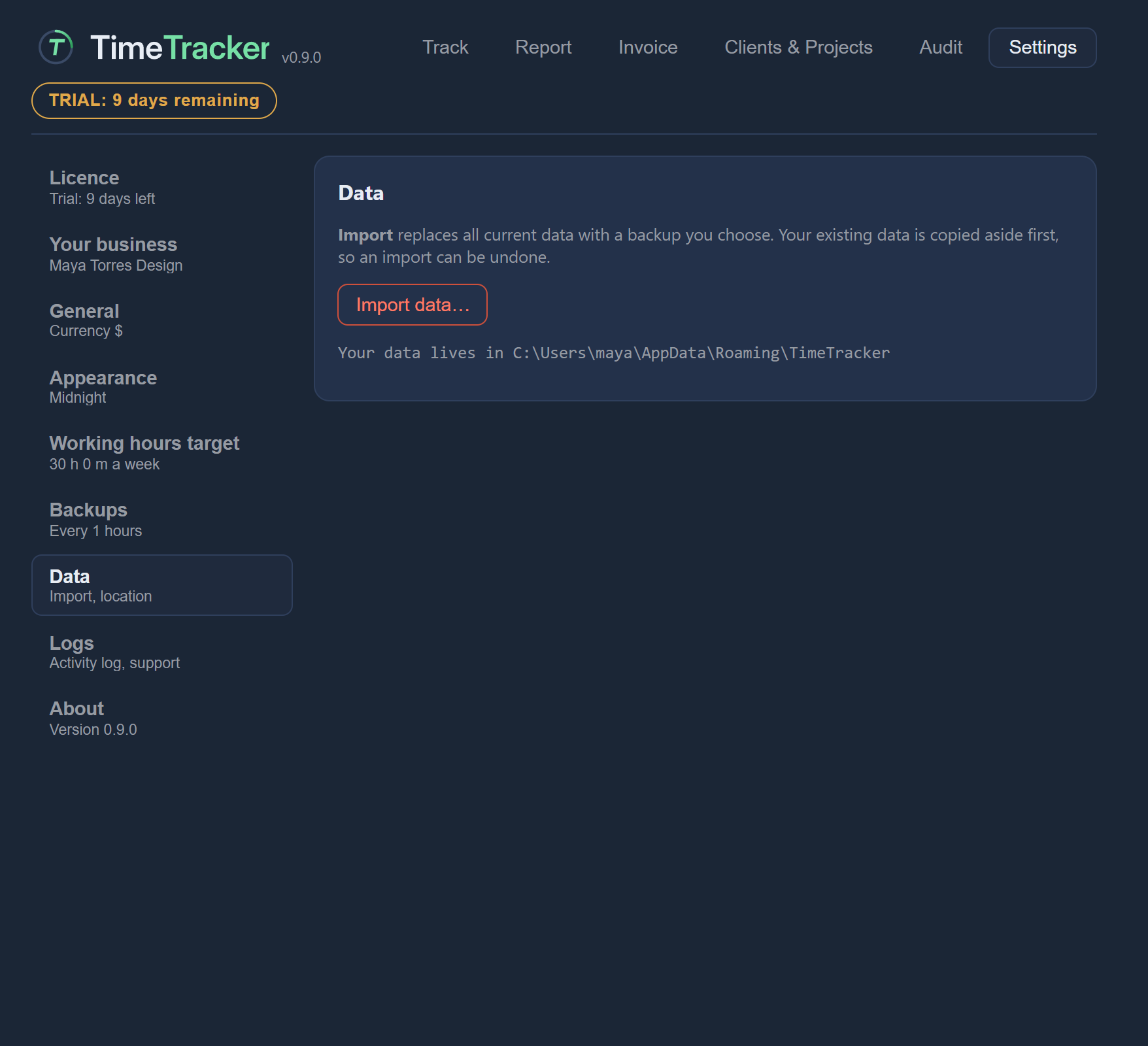
All your clients, projects, rates, entries and invoices are kept in one file, timetracker.db, on your computer.
On Windows it is in your own app-data folder, usually:
C:\Users\<you>\AppData\Roaming\TimeTracker\
Settings → Data shows the exact location (“Your data lives in …”).
No account, no cloud, nothing sent
| What | TimeTracker has |
|---|---|
| Account | No account and no sign-in. |
| Cloud | No cloud storage and no syncing between devices. |
| Tracking | No usage tracking, no analytics and no automatic crash reporting. |
The developers checked this: a full run of the app, including timers, backups and the support buttons, made no network connections at all.
It also never watches your screen or your other apps. It only records what you type into it.
What the local log records
TimeTracker keeps a log on your computer of how the app is used, plus a record of any crash. These help with fixing problems.
The log records what happened: which screens and actions were used.
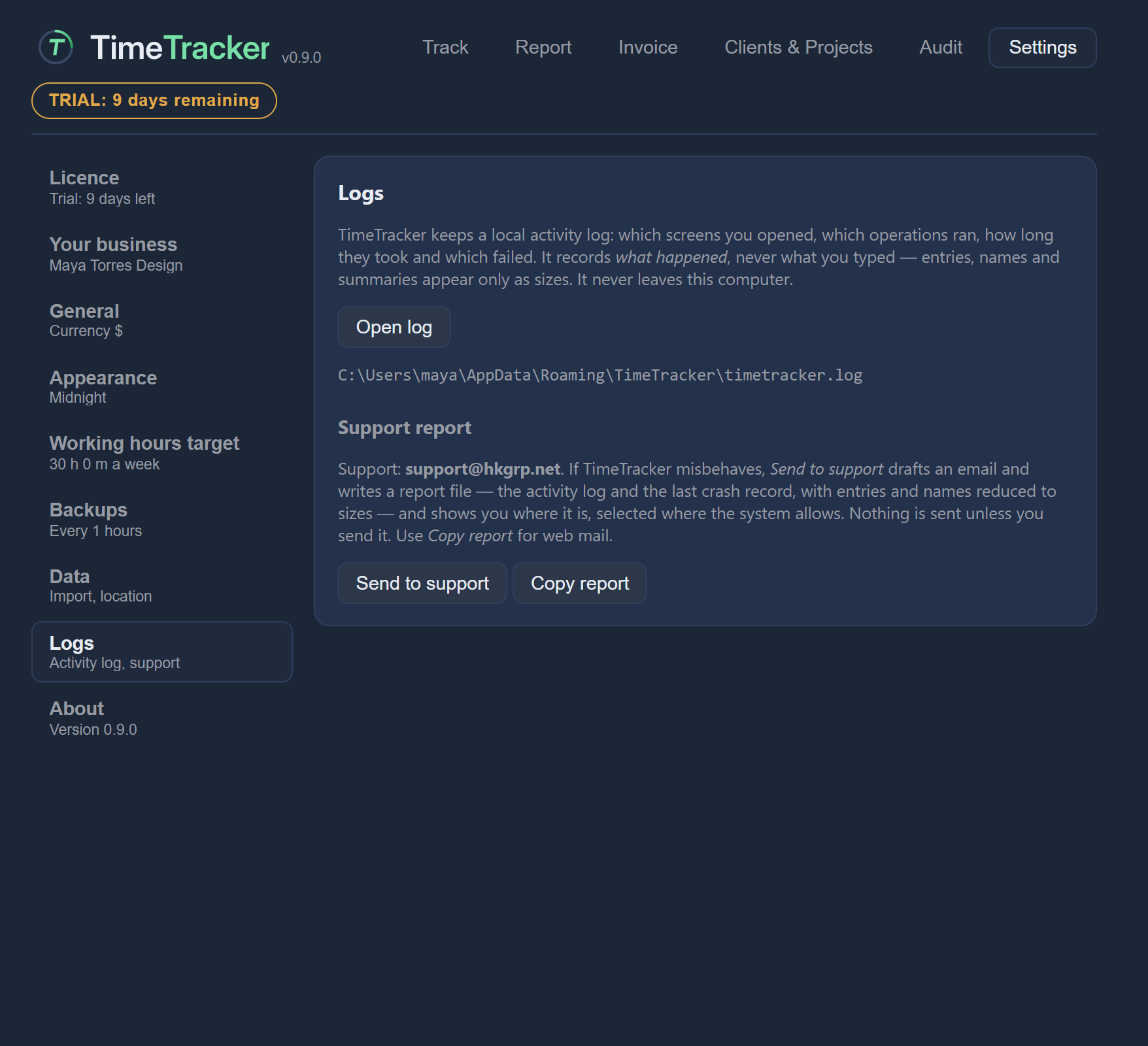
Nothing in the log is sent anywhere. You decide whether to email it to support yourself. See Troubleshooting for where the files are.
Uninstalling keeps your data
Uninstalling TimeTracker removes the program and a cache of temporary files. It does not delete your data file. If you install TimeTracker again, your data is still there.