Budgets
Set a budget on a fixed-price project and see how much is used, how much is left, and when it will run out.
On this page
At a glance
- Give a fixed-price project a budget: the total agreed value of the contract.
- See what is used and what is left, in money and in hours.
- A strip on the Track tab shows the budget going down as you work.
- Two forecasts show when the budget will run out.
If you’ve agreed a fixed price for a job, a budget tells you how much of that job you’ve already used. It helps you notice early if a job is taking longer than you planned.
Set a budget on a project
- Open the Clients & Projects tab, then the client and the project.
- Enter the total agreed value of the contract as the budget.
- Press Save.
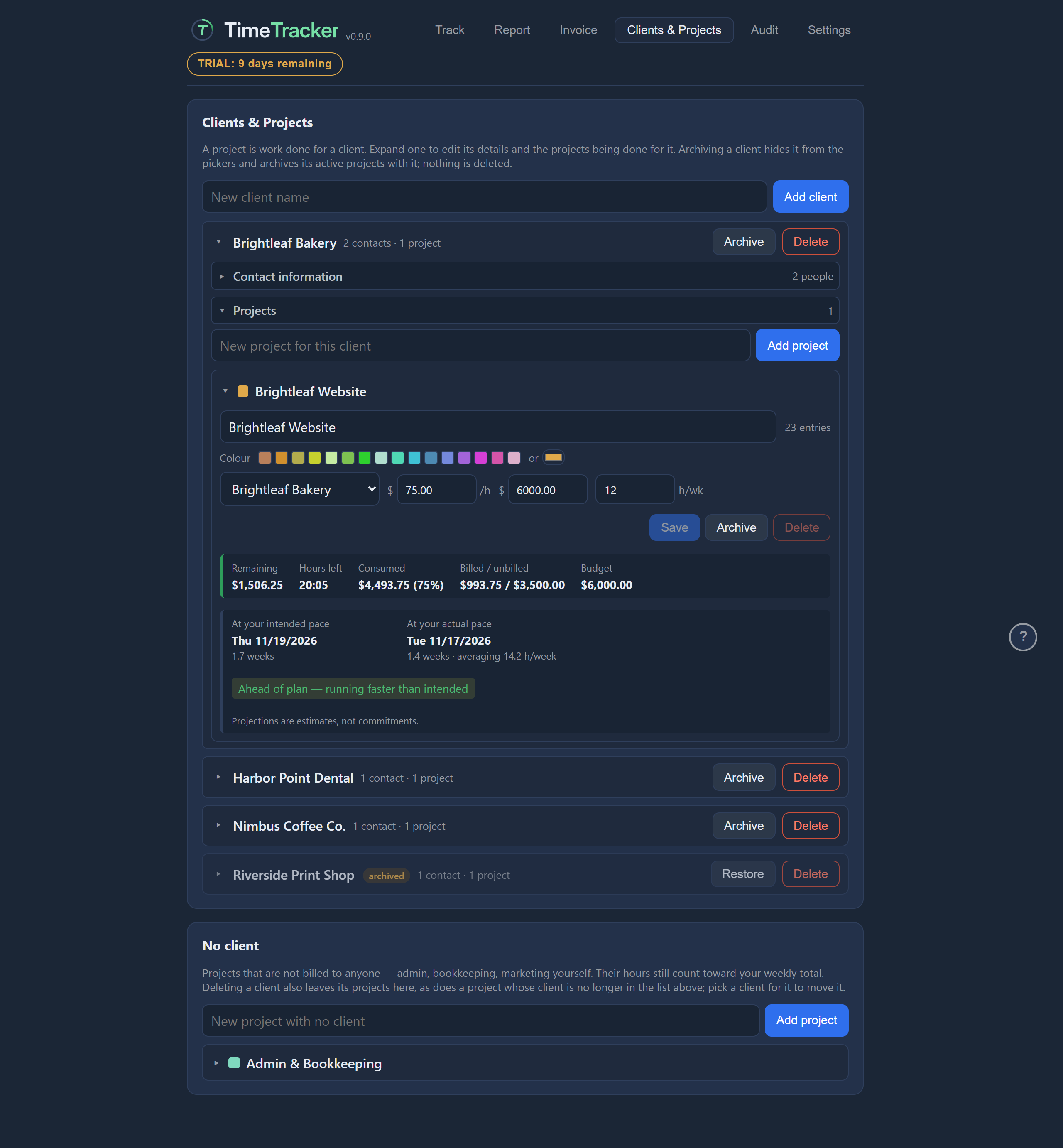
Leave the budget empty if the project has none. Each project has its own budget.
See what is used and what is left
With a budget set, the open project on the Clients & Projects tab shows where the budget stands.
- what is left, in money and in hours
- how much is used
- how much has been billed, against how much is tracked but not invoiced yet

Watch the budget strip as you work
While you track time on a project that has a budget, a strip under the timer shows the money and time left and the share used. It turns red when the budget is overrun.

Today’s breakdown by project also shows the budget left on each project that has one. See Today’s total.
Show time left in hours or days
Click the time left on the budget strip to switch it between hours and working days. TimeTracker remembers your choice.
Read the completion forecasts
TimeTracker gives you two forecasts of when the budget will run out.
| Forecast | What it uses |
|---|---|
| At your intended pace | The hours per week you set as the project’s intended pace. |
| At your actual pace | How much you have really been working on it. |
It also says whether you are ahead of or behind your plan. The forecasts are estimates, not promises.
Entries dated in the future
Entries dated in the future are left out of the budget figures. If a project has any, the budget strip says how many and how much.