Troubleshooting
What to do after a crash, how to send a report to support, and fixes for common messages.
On this page
At a glance
- After a crash, a notice lets you see the crash record and send it, if you want to.
- Send to support writes a report file and opens an email draft. You attach and send it.
- Copy report is for web mail, or when no email program opens.
- Fixes for “Another copy is running” and negative times.
- Nothing is sent unless you send it yourself.
If something goes wrong, this page helps you put it right, or send the information support needs to help you. Nothing is sent unless you send it yourself.
After a crash
If TimeTracker closed unexpectedly last time, the next time you open it you see a notice headed “TimeTracker closed unexpectedly last time”, with the time of the crash and the version of TimeTracker. A record of what happened was saved on your computer. Nothing has been sent.
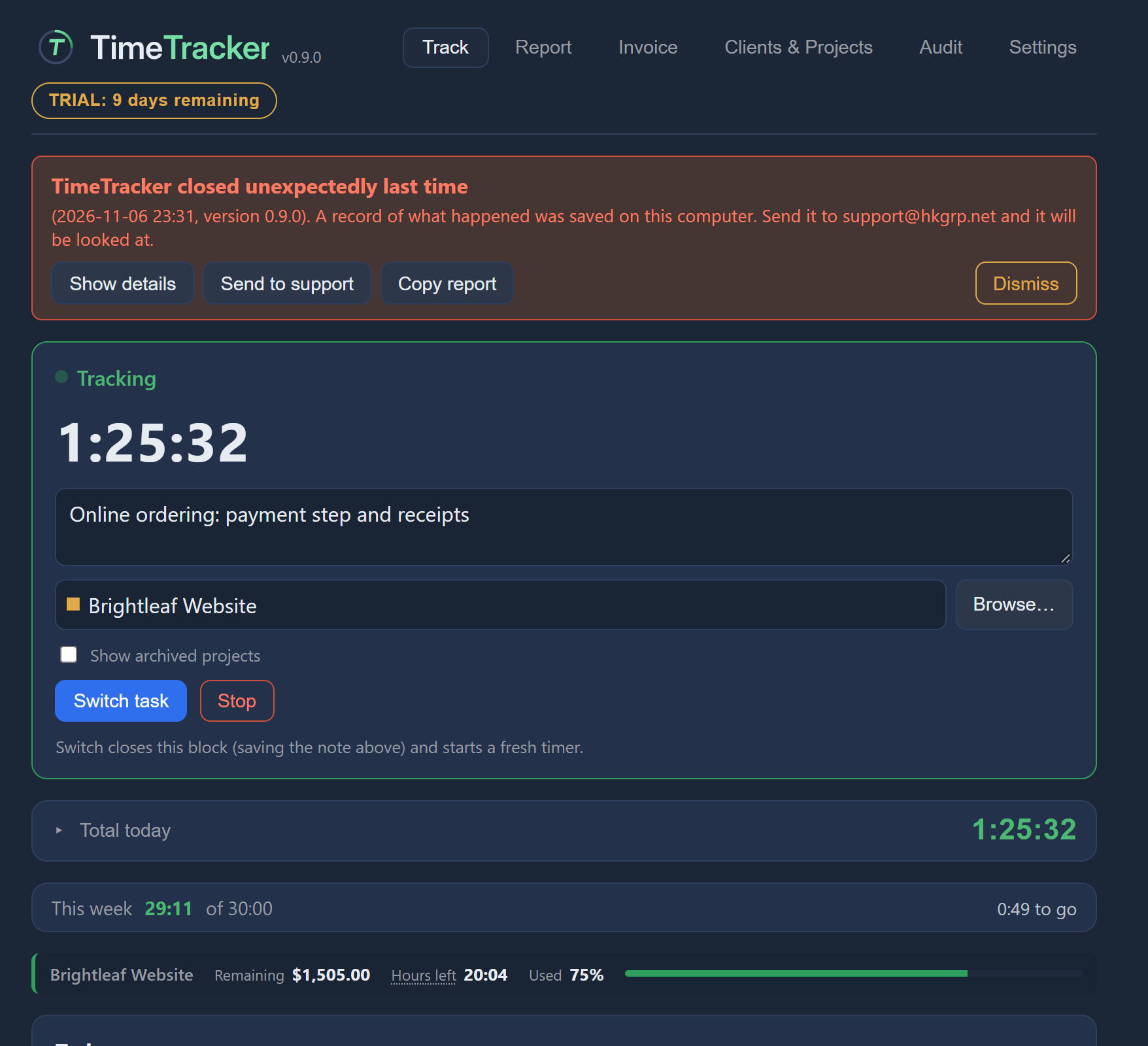
| Button | What it does |
|---|---|
| Show details | Shows the crash record saved on your computer, so you can see exactly what it holds before you send anything. |
| Send to support | Writes a report file and opens an email draft to support. Attach the file yourself, read the draft, and send it. Nothing is sent automatically. |
| Copy report | Copies the report text, so you can paste it into your own email or message, for example in web mail. |
| Dismiss | Set apart at the end. Closes the notice. The crash record stays on your computer. |
Open the log
- Open Settings → Logs.
- Click Open log.
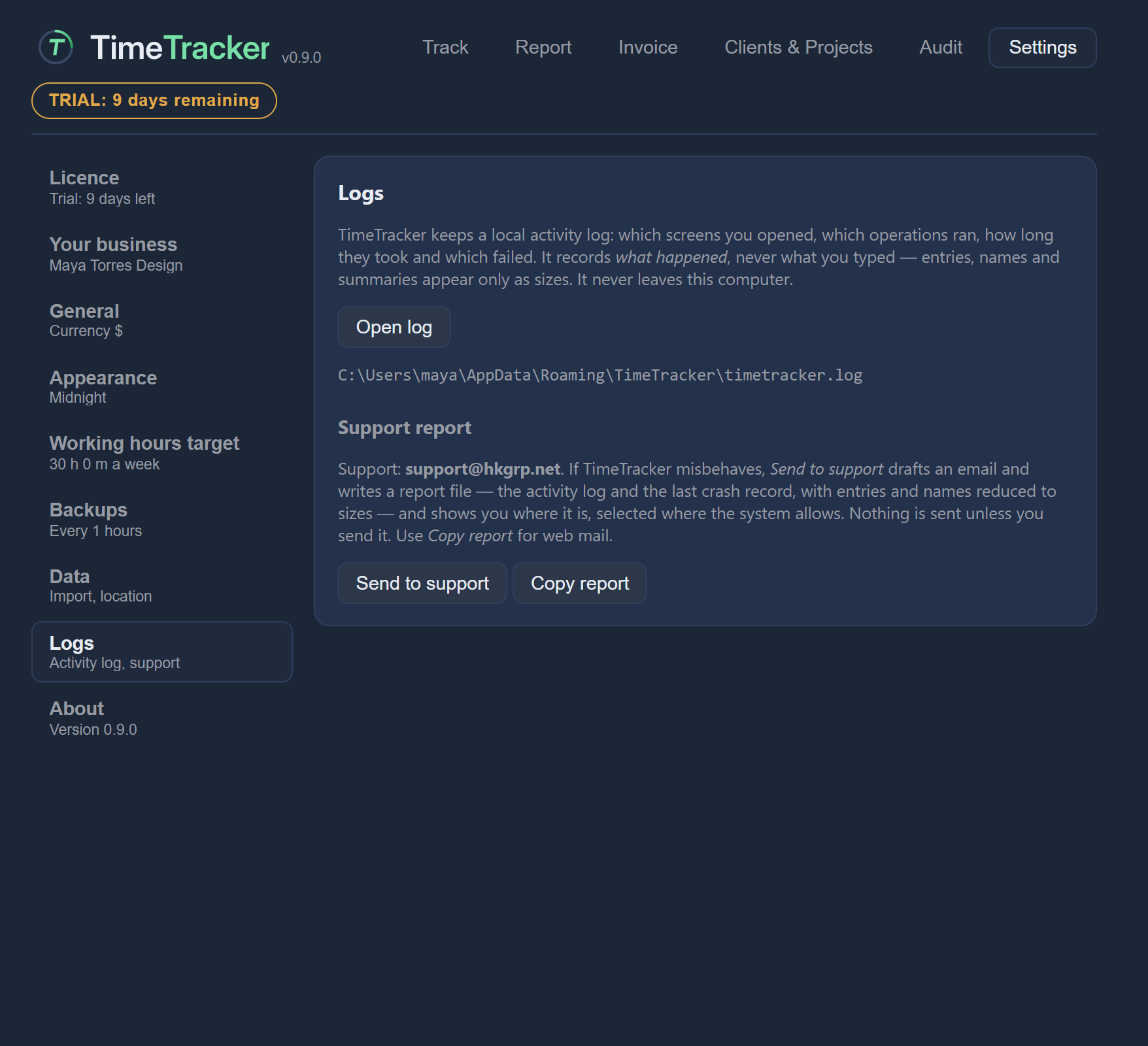
The log opens in whichever program your computer uses for log files. It records what happened: which screens and actions were used.
Send a report to support
- Open Settings → Logs.
- Click Send to support. TimeTracker writes a support report file (a zip file) and opens a draft email to support in your email program.
- Attach the report file to the draft. The file is not attached for you. A message in Settings → Logs shows the address to write to and where the file is.
- Add a line saying what went wrong, check the draft, and send it as you would any email.
The message stays until you close it or leave the page. It can also appear in Settings → About. Closing it doesn’t delete the report file.
Copy the report
Copy report, in Settings → Logs, copies the support report to your clipboard as plain text. Paste it into an email, for example in web mail if no email program opens on your computer. Nothing is sent.
A message then shows the address to write to.
“Another copy is running”
Only one copy of TimeTracker can use your data at a time.
Fix negative time or “check times”
If the timer shows a negative time, or an entry says “check times”, either your computer’s clock has changed or the entry’s start and end can’t both be right.
- Check that your computer’s date and time are correct.
- Then edit the entry and correct whichever time is wrong. See Edit a past entry.
Where the log files are
Everything is in your data folder, usually C:\Users\<you>\AppData\Roaming\TimeTracker\.
| File | What it is |
|---|---|
timetracker.log |
The activity log, plus timetracker.log.1 once the first one has filled up. |
crash-*.log |
Crash records. |
reports\timetracker-crash-*.zip |
Support reports. |
Settings → Logs also shows the file path.