Reports
Make a report of your hours for any date range and export it as a PDF your client can approve.
On this page
At a glance
- Report on a week or any range of dates, for all projects or just one.
- Each day shows its entries, its total and whether it has been billed.
- Fix a day’s entries straight from the report.
- Export a PDF with an approval header for your client to sign off.
A report shows the hours you worked over a period, so a client can check and approve them. Many freelancers send one at the end of each week or month, before the invoice.
Reports are on the Report tab.
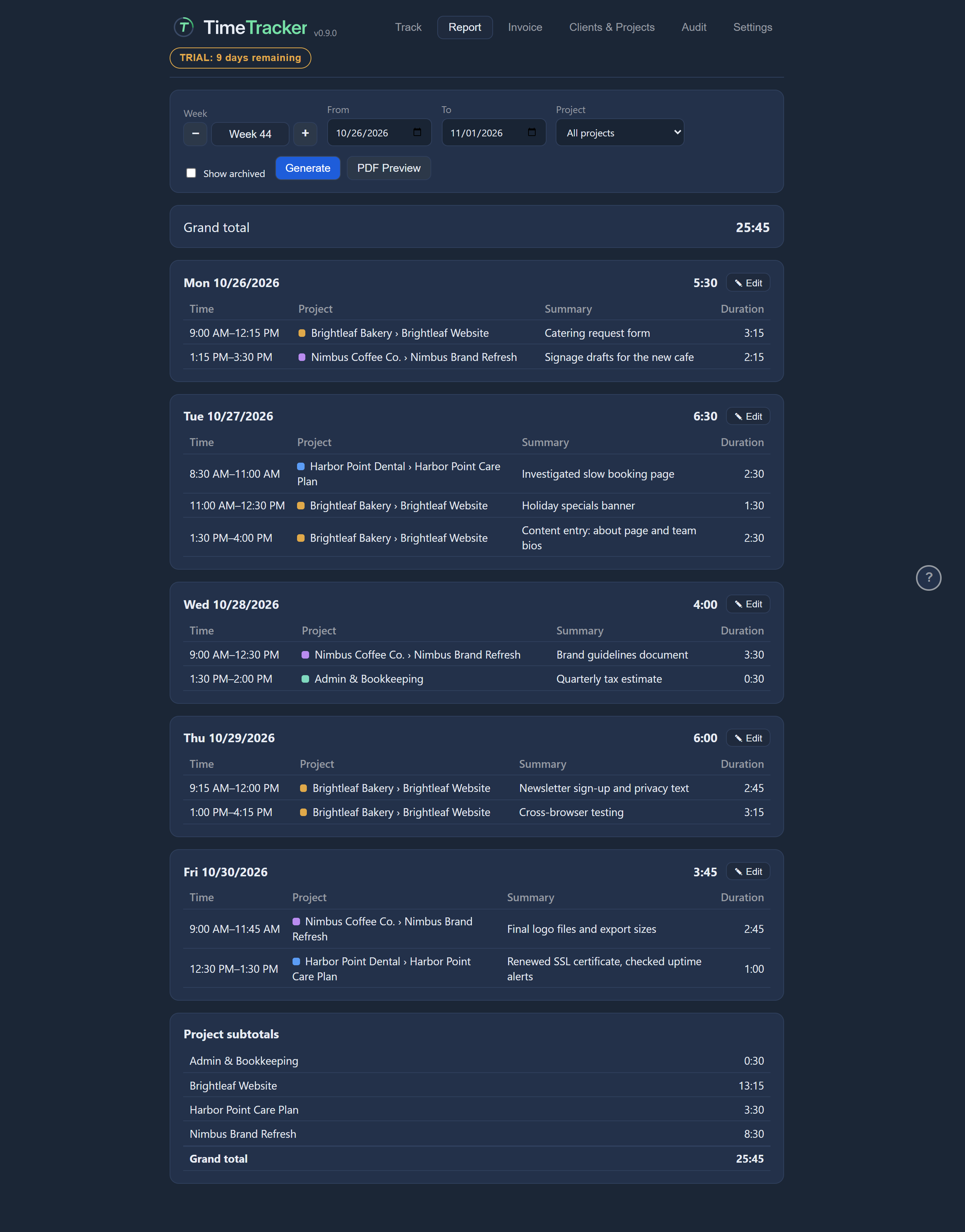
Choose the dates
At the top of the Report tab you choose what the report covers, then press Generate.
| Choose | How it works |
|---|---|
| A week | The week is shown with − and + beside it. Press − or + to move one week back or forward. Click the week itself to jump back to the current week. On a Monday, last week is included too, so you can still report on the week you just finished. |
| Any range | Set the first and last day the report covers. |
Then press Generate. The report is built for the dates you chose.
Show only one project
The project filter limits the report to one project. This is useful when a client only wants to see the hours for their own job.
Leave it on All projects to include everything. To report on old work, tick the option to include archived projects in the list.

Read the report
The report is grouped by day. It shows:
- each day’s entries and the day’s total
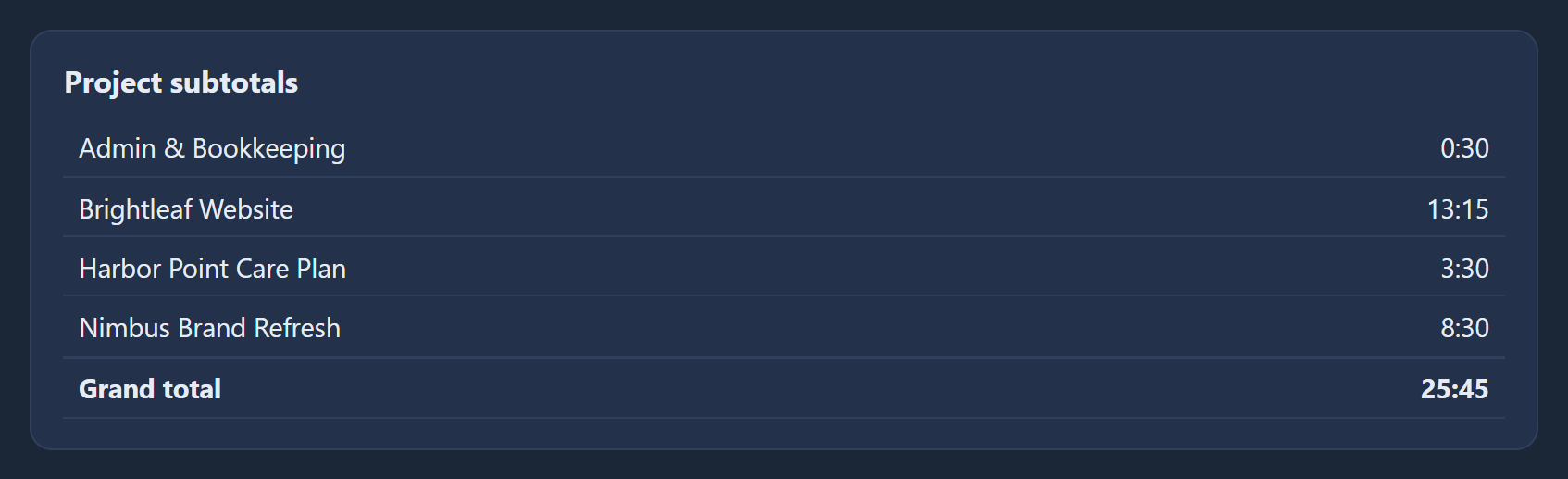
- a subtotal for each project across the whole range
- a grand total for the whole range
See which days are billed
Each day has a badge showing whether its time is on an issued invoice: all of it, or only some.
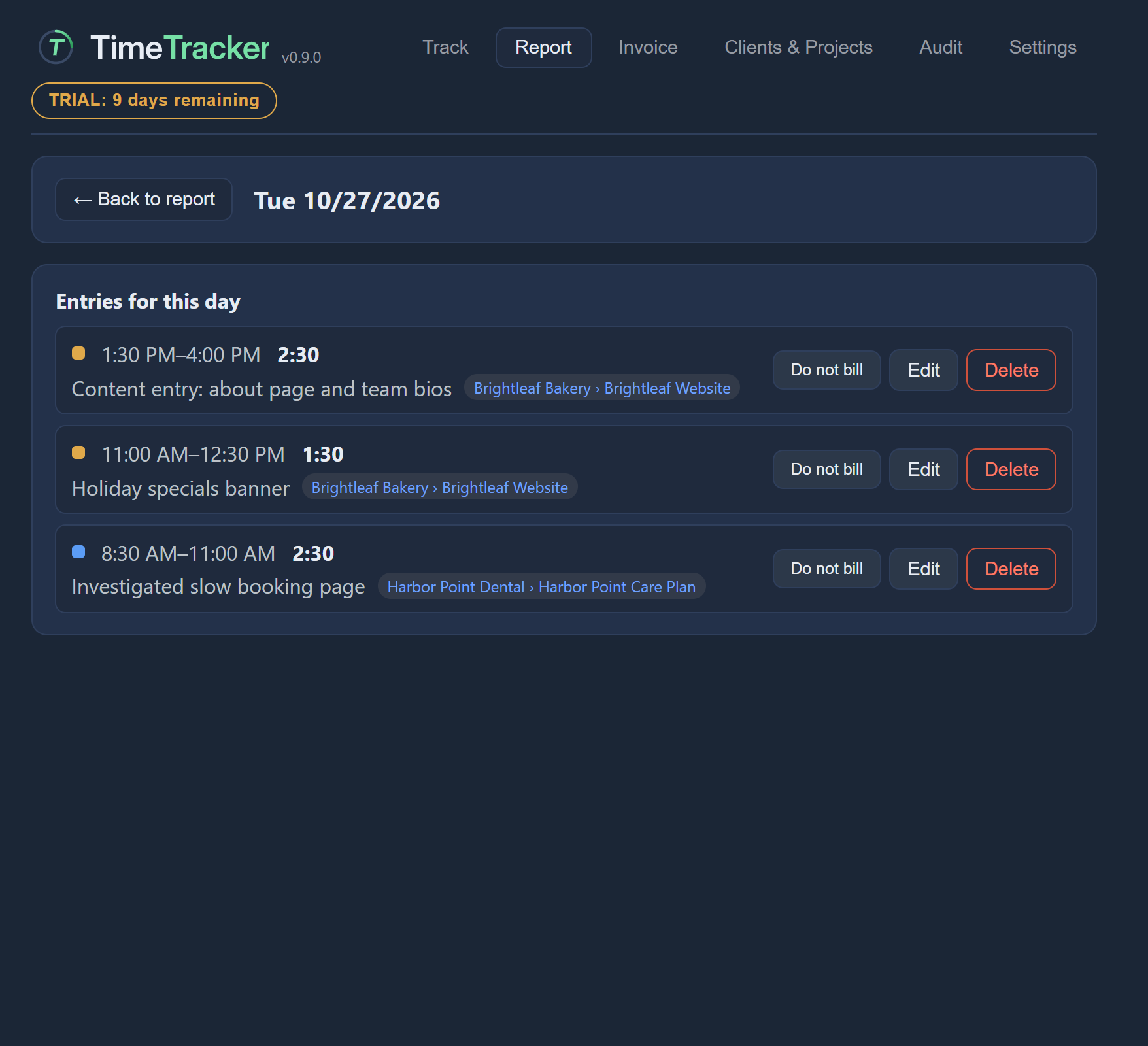
Fix a day’s entries
Each day has a button that opens its entries for editing.
There you can edit entries, delete them or mark them do not bill, in the same way as on the Track tab (see Edit a past entry). When you go back, the report shows your changes.
Export a PDF for approval
- Check that the report looks right.
- Press PDF Preview. It opens the report as a PDF, ready to send for approval.
- Save the PDF from the PDF viewer. Nothing is saved until you do.
The PDF has an approval header at the top with your name, the period it covers and the total, so your client can check it and sign it off.
A report is not an invoice. To bill the hours, see Invoices.