Screen by screen
What every button and box in TimeTracker 0.9 does, one screen at a time. In the app, press the round ? button in the bottom-right corner, then click any control to land on its entry here.
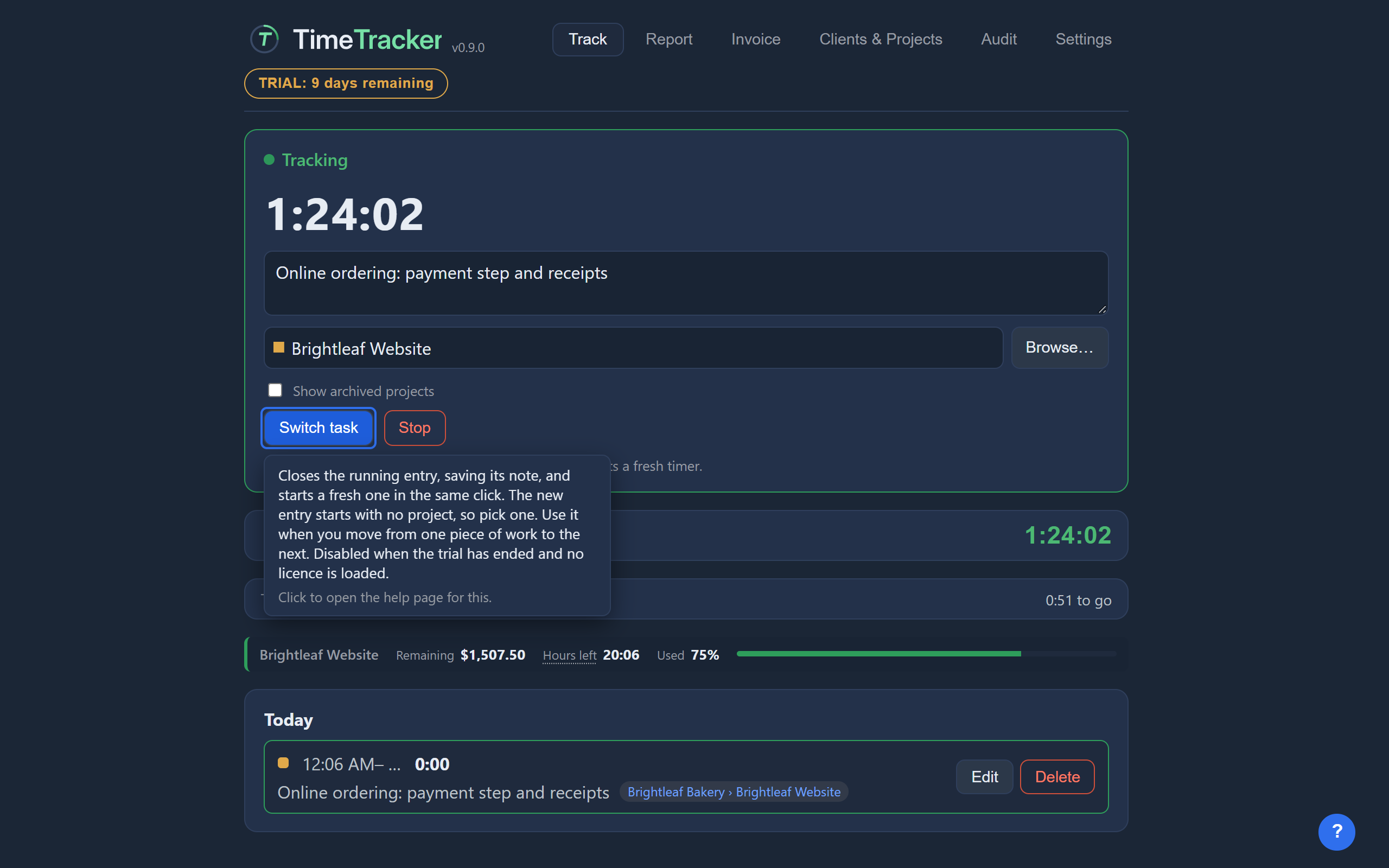 Header and help barThe parts of the window that are always there: the tabs, the trial badge, the version and the notice shown after a crash.10 controls explained
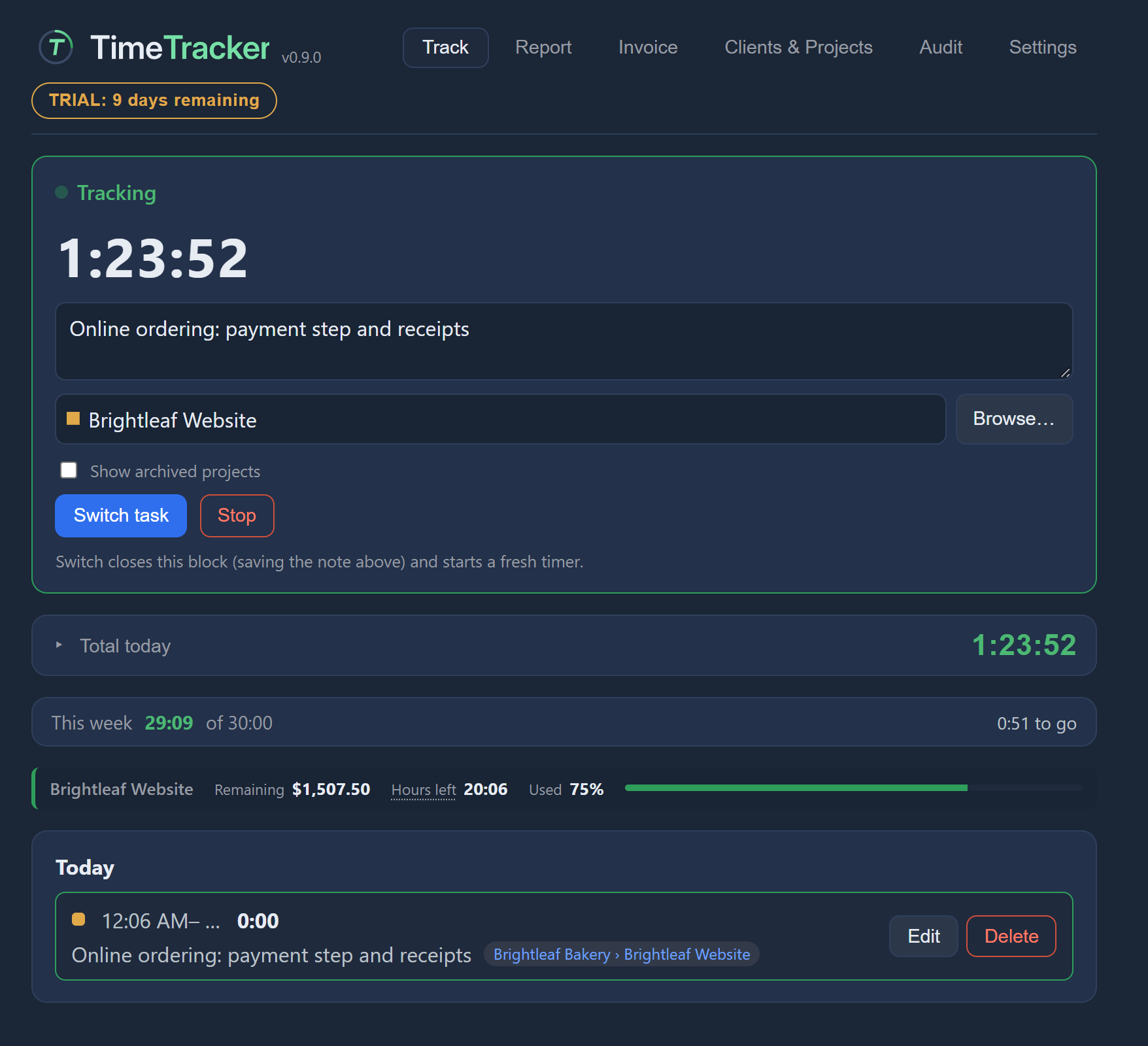 TrackWhere you start, switch and stop the timer, and see today's and this week's time.36 controls explained
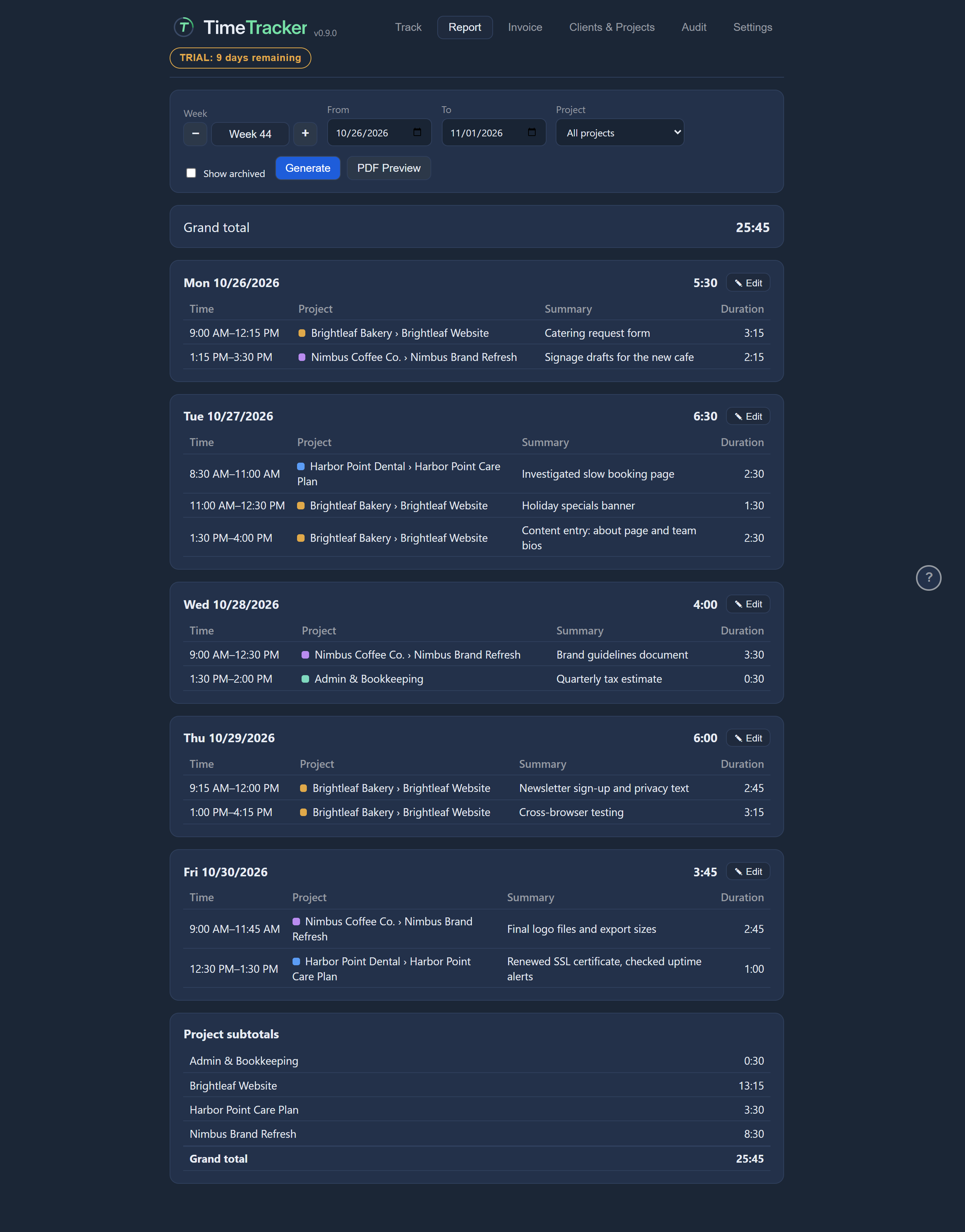 ReportWhere you review time for any date range, fix entries day by day, and export a PDF for approval.35 controls explained
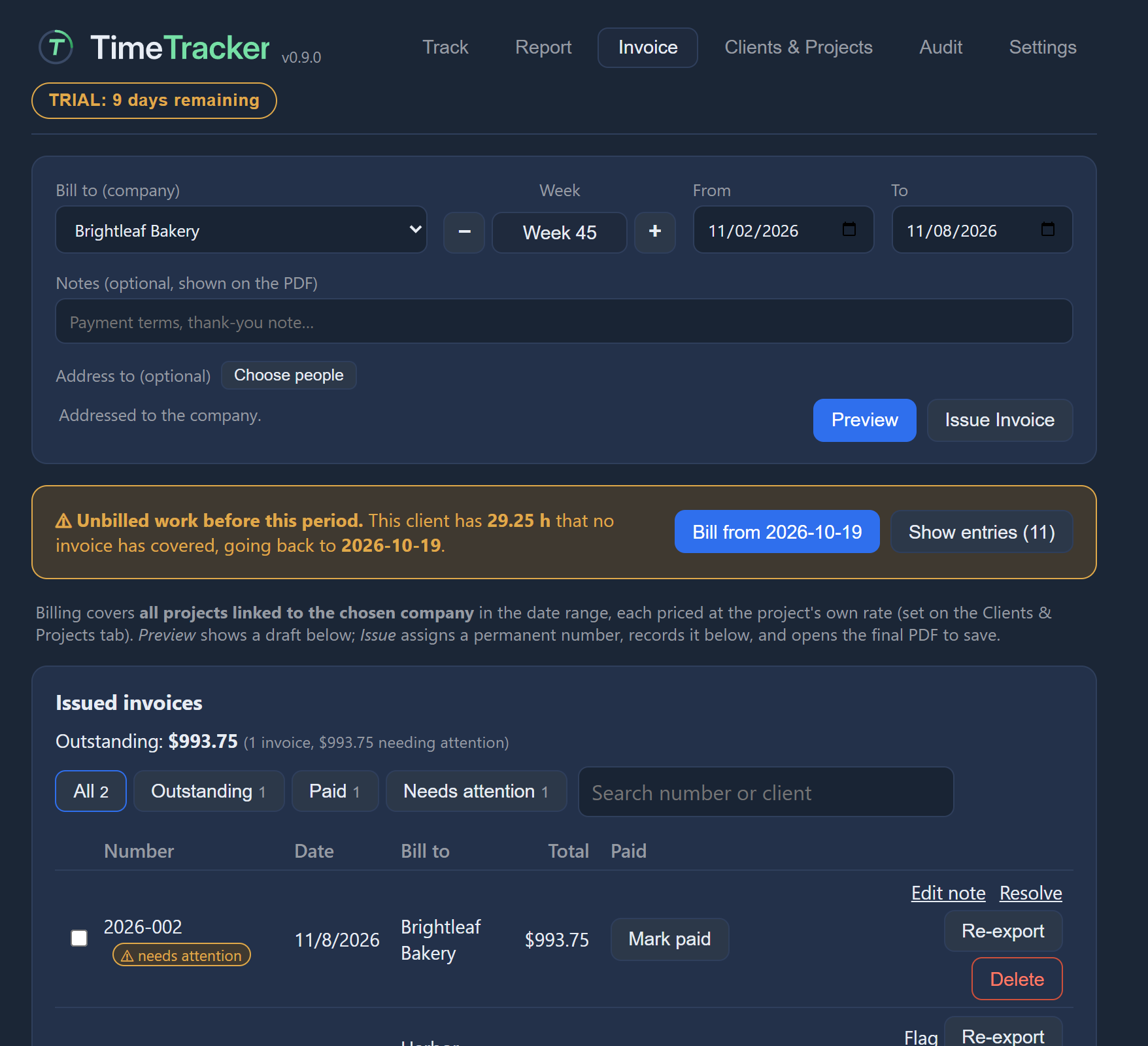 InvoiceWhere you turn tracked hours into a numbered PDF invoice and record payments.54 controls explained
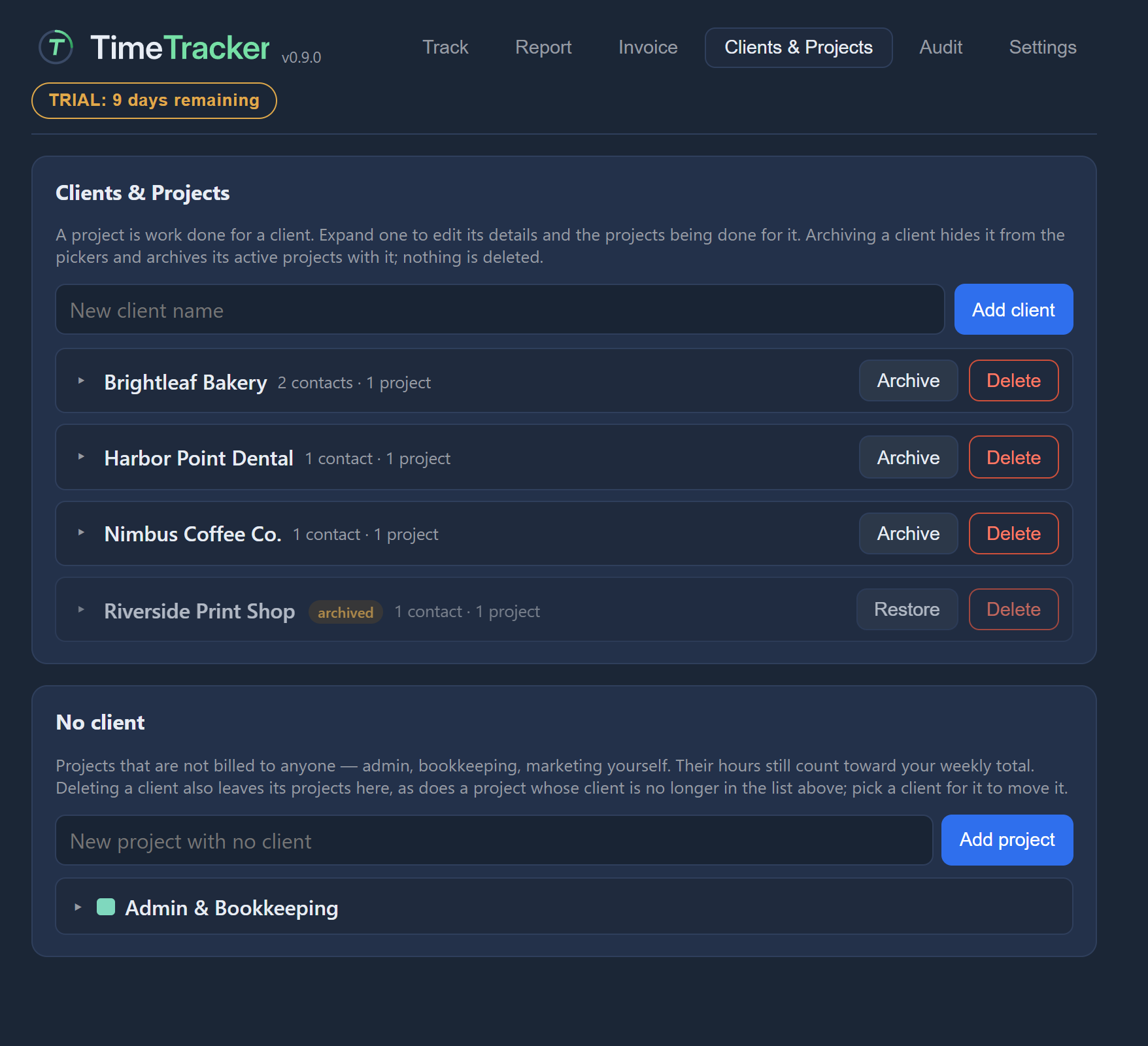 Clients & ProjectsWhere you keep your clients, their contacts, and the projects you bill them for.36 controls explained
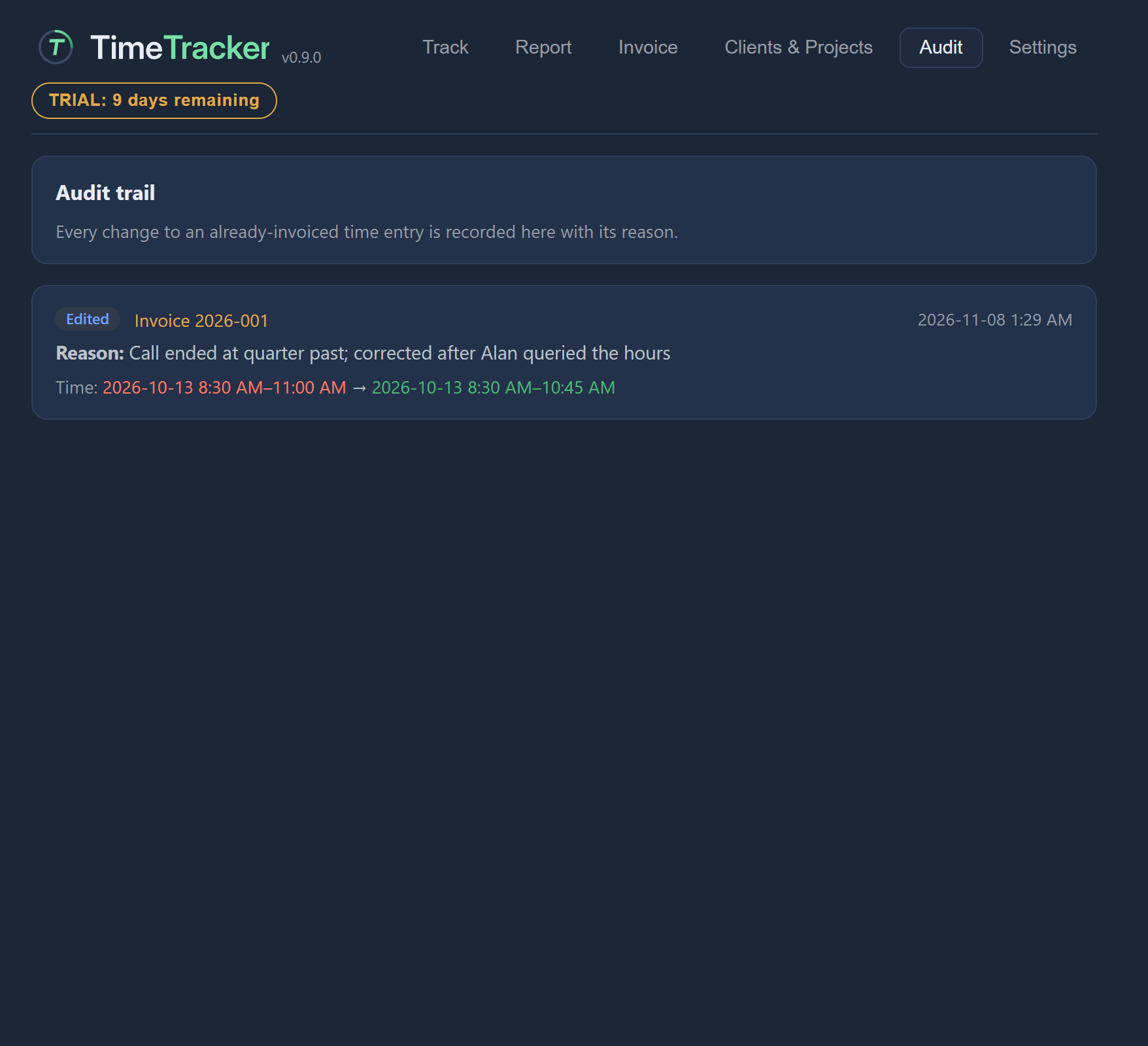 AuditThe permanent record of every change made to time that was already invoiced.2 controls explained
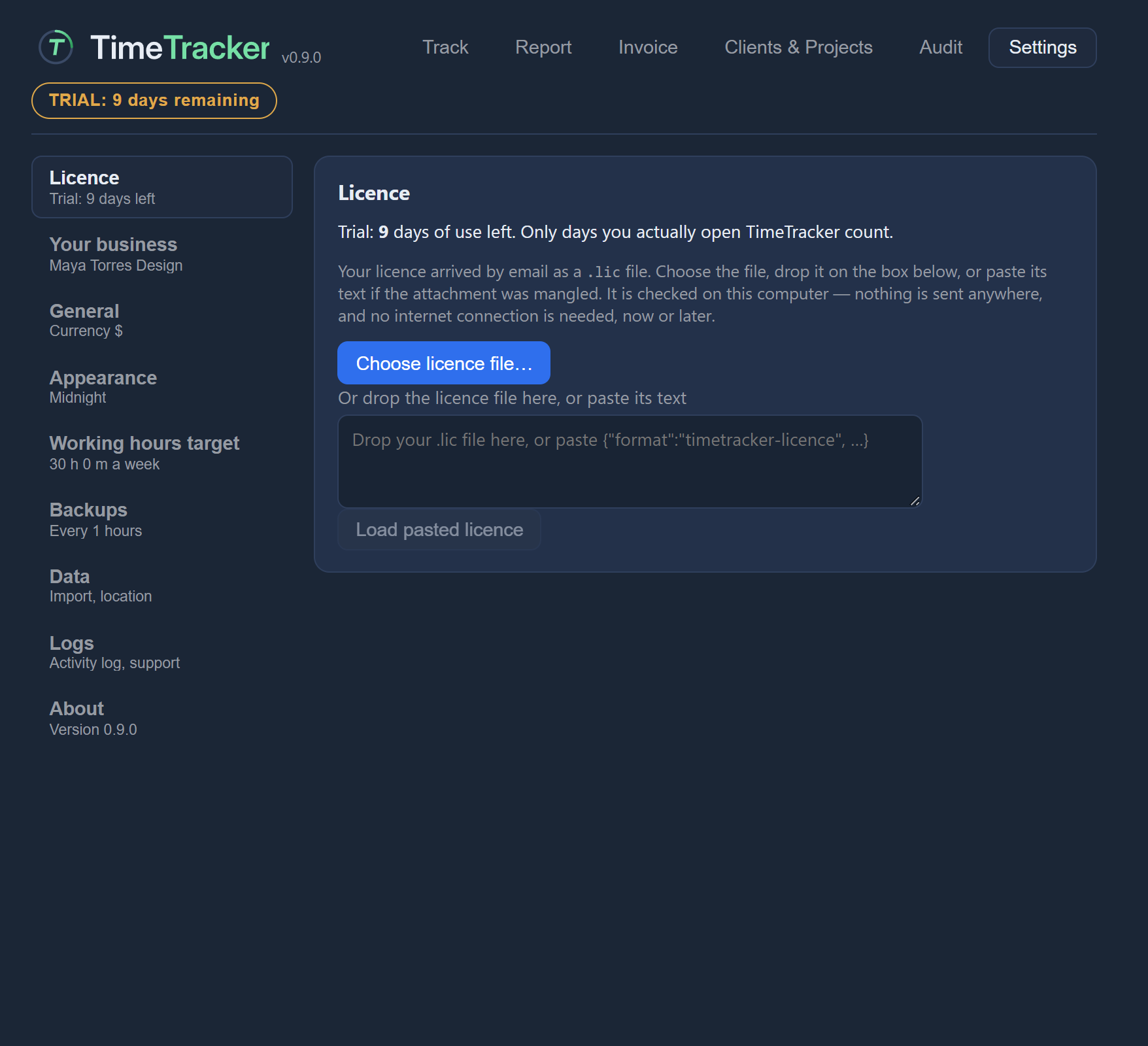 SettingsYour business details, regional formats, theme, backups, data, licence and logs.44 controls explained