Trial and licence
How the free trial counts days, what happens when it ends, and how to load your licence.
On this page
At a glance
- The free trial is 10 days of actual use, with no sign-up and no card.
- When it ends, only starting or switching a task is blocked. Everything you recorded keeps working.
- A licence is a file ending in
.licthat you load in Settings → Licence. - It is checked on your computer. No internet, account or activation server.
You can try TimeTracker free before you buy it. This page explains how the trial works, what changes when it ends, and how to load a licence.
How the trial counts days
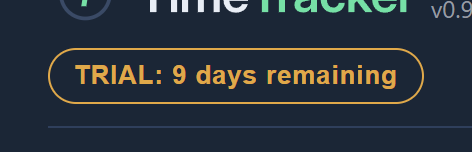
The trial lasts 10 days of actual use, not 10 calendar days. A day only counts if you open TimeTracker that day.
You can see how many days are left in two places:
- The trial badge in the header at the top of the app. Click it to go straight to Settings, where you load a licence.
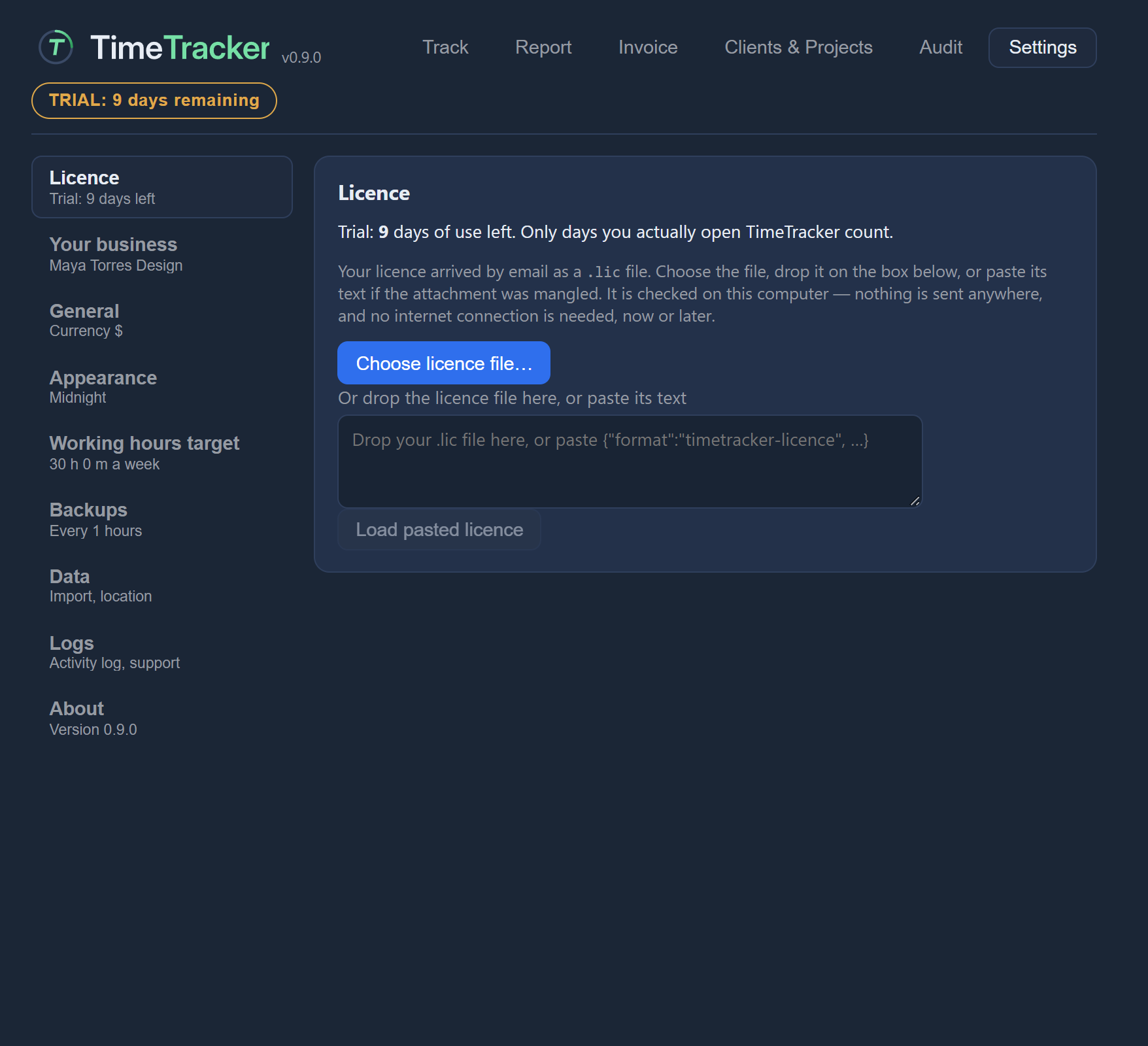
- Settings → Licence, which says “Trial: N days of use left”.
What happens when the trial ends
When the trial ends, only starting or switching a task is blocked: Start task and Switch task are greyed out. The trial badge in the header says the trial has ended. Everything you recorded stays usable.
| What you do | After the trial ends |
|---|---|
| Your entries, and editing them | Still works |
| Reports | Still works |
| Invoices | Still works |
| PDF exports | Still works |
| Backups | Still works |
| Stopping a running timer | Still works, always |
| Start task and Switch task | Greyed out until you load a licence |
The app tells you: “Your trial has ended. Everything you recorded is still here — entries, reports, invoices, exports and backups all keep working. To start new tasks, load your licence under Settings.”
Buy a licence
A licence will be sold as a one-time purchase of US$29.99 when TimeTracker 1.0 is released. It is not a subscription.
How many computers one licence covers, and the refund policy, will be announced before licences go on sale.
Load your licence
After you buy, your licence arrives by email as a file ending in .lic. Open Settings → Licence (or click the trial badge in the header), then use one of these three ways.
| Way | How |
|---|---|
| Choose the file | Click Choose licence file… and pick the .lic file. |
| Drag it in | Drag the .lic file onto the box. It is checked and loaded at once. |
| Paste it | Open the .lic file’s text, copy it, paste it into the box and click Load pasted licence. Use this if the email attachment arrived damaged. |
Check that it worked
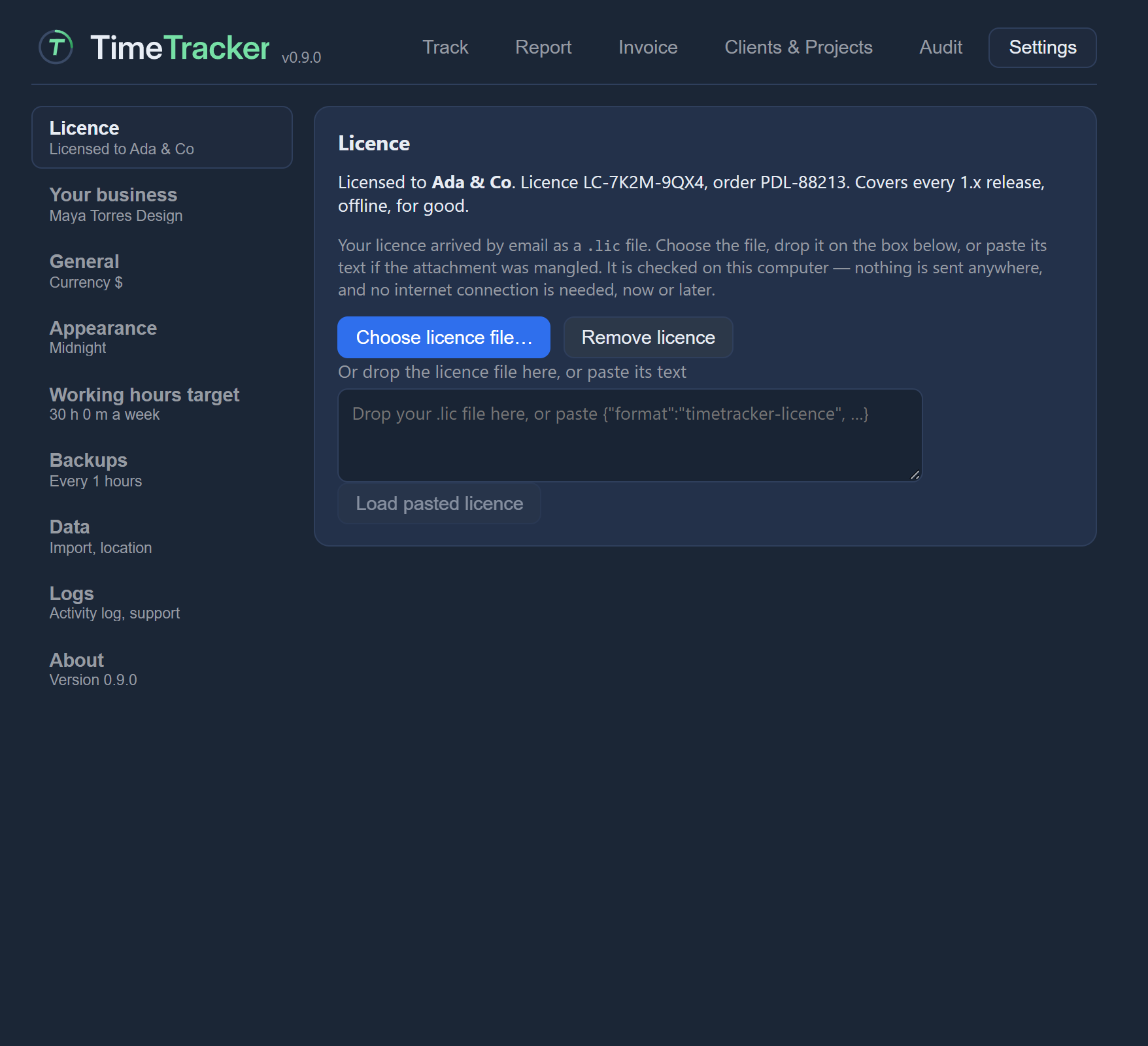
Settings → Licence then shows “Licensed to” and your name, the licence id, the order number, and “Covers every 1.x release, offline, for good.”
Remove a licence
- Open Settings → Licence.
- Click Remove licence.
- Confirm. Your data is not affected.
No internet needed
Your licence is checked entirely on your computer. Nothing is sent, and no internet connection is needed, now or later. There is no account and no activation server.
Upgrades
If you lose your licence file
The process for getting a lost licence sent again will be announced before licences go on sale. Until then, email support@hkgrp.net.